How to set up Tor Browser for Torzon market
A complete first-time setup: from downloading Tor Browser to completing your first verified Torzon session. Covers PGP signature verification, security level configuration, bridge setup for restricted networks, account registration, two-factor authentication, and Monero wallet configuration. Follow each step in order — each builds on the previous one.
Before you start
Four things to have ready. Each one matters for a smooth setup.
Desktop or laptop
Mobile access through Tor Browser for Android is possible but carries additional fingerprinting risks. PGP operations and hardware 2FA are significantly harder on mobile. Use a desktop running Linux, macOS, or Windows for any serious setup.
Official download only
Download Tor Browser exclusively from torproject.org. Never from app stores, mirror sites, or third-party hosting. The PGP signature check in step 2 catches tampered downloads — but only if the source itself is the official one.
GnuPG installed
GnuPG (GPG) is required for verifying the Tor Browser download and for your Torzon PGP key in step 7. On Linux it's usually pre-installed. On Windows, use Gpg4win. On macOS, use GPG Suite from gpgtools.org.
A Monero-capable wallet
Monero is the payment of choice on Torzon — 0.5% fee versus 2% for Bitcoin. Feather Wallet (desktop) and Cake Wallet (mobile) are both reliable. Have a source for XMR ready: Kraken, OKX, or a peer-to-peer exchange that supports direct XMR withdrawals.
8-step setup guide
From clean machine to first verified Torzon session. All steps are required.
Download Tor Browser from torproject.org
Go to torproject.org/download and select the version for your operating system. Tor Browser is available for Windows, macOS, Linux, and Android. As of April 2026, the current stable release is 13.5.x — check the site for the latest version number.
The download page also offers a bridge bundle for users in countries where Tor is actively blocked — Russia, China, Iran, Belarus, and several others. If you're in a restricted network environment, select the option to include bridges before downloading. This bundles obfs4 transport with the browser.
Verify the PGP signature of the download
Every Tor Browser release is signed by the Tor Project's release key. Verifying this signature confirms the file wasn't modified between the server and your machine — protection against ISP interception, DNS hijacking, and man-in-the-middle attacks.
Download both the installer and the .asc signature file
from the same page. Import the Tor Project's signing key, then run verification:
gpg --keyserver keys.openpgp.org --recv-keys EF6E286DDA85EA2A4BA7DE684E2C6E8793298290
gpg --verify tor-browser-linux64-13.5_en-US.tar.xz.asc tor-browser-linux64-13.5_en-US.tar.xz
A successful verification shows "Good signature from Tor Browser Developers". Any other output — including "BAD signature" — means the file is compromised. Delete both files and re-download from scratch.
Set the security level to "Safest"
After installing and launching Tor Browser, click the shield icon in the top-right corner of the toolbar. Select Change security settings and move the slider to Safest.
The Safest level disables JavaScript entirely, blocks SVG fonts, and restricts WebGL and audio/video autoplay. These features are the most common vectors for browser-based fingerprinting and exploit delivery. Torzon is built to function completely without JavaScript — all market features, including login, browsing, and ordering, operate normally at the Safest level.
Configure Tor bridges if Tor is blocked
In most countries, Tor connects without any bridge configuration. Click Connect when Tor Browser opens — connection takes 15–45 seconds on the first attempt. If it connects successfully, skip this step.
If Tor is blocked, click Configure Connection instead. Select Use a bridge and choose obfs4 as the transport type — it's the most widely supported option and disguises Tor traffic as ordinary HTTPS. For fresh bridges not yet blocked, email bridges@torproject.org with "get transport obfs4" in the message body.
For the highest-security setups, Whonix OS and Tails OS route all system traffic through Tor at the OS level — no per-application configuration required. Details in the operational security section below.
Copy a verified Torzon onion address
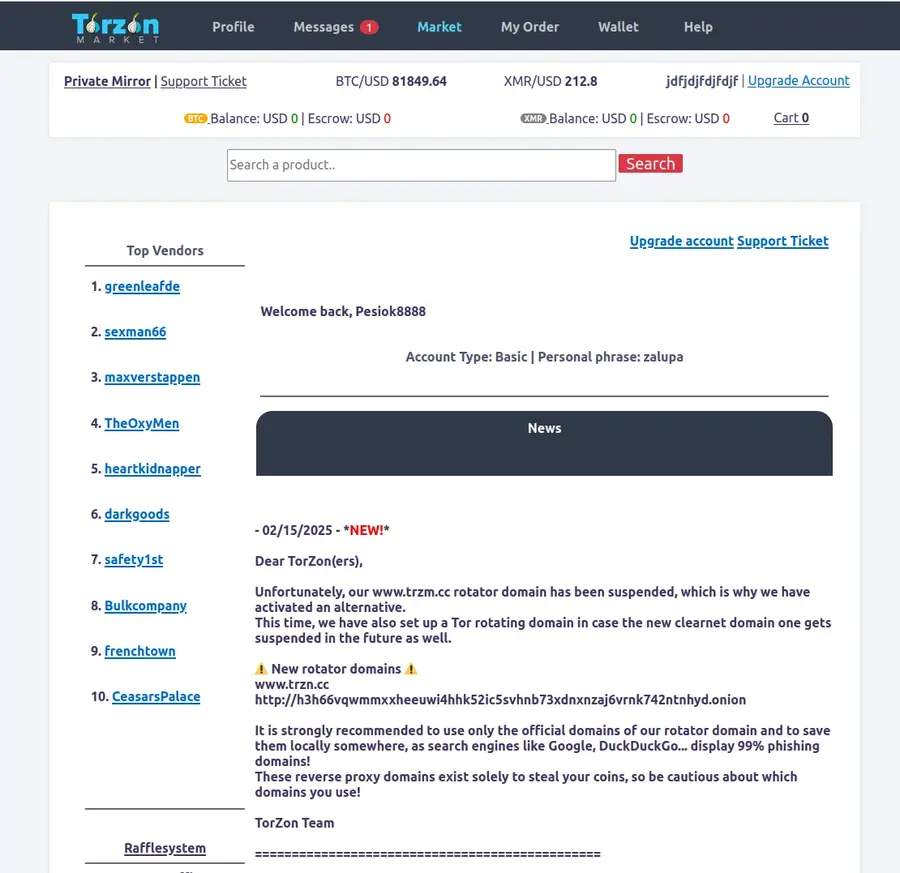
Return to the Torzon Portal homepage and copy one of the 5 verified Torzon .onion addresses using the copy button. Do not type the address manually — phishing sites count on typographic errors. A single transposed character leads to a site that is visually identical to the real Torzon but is controlled by attackers.
Paste the copied address into Tor Browser's address bar and press Enter. First load takes 10–30 seconds as Tor builds a circuit through 3 relay nodes. If one mirror doesn't respond after 60 seconds, try a different one — all 5 addresses serve identical content.
Complete CAPTCHA and create your account
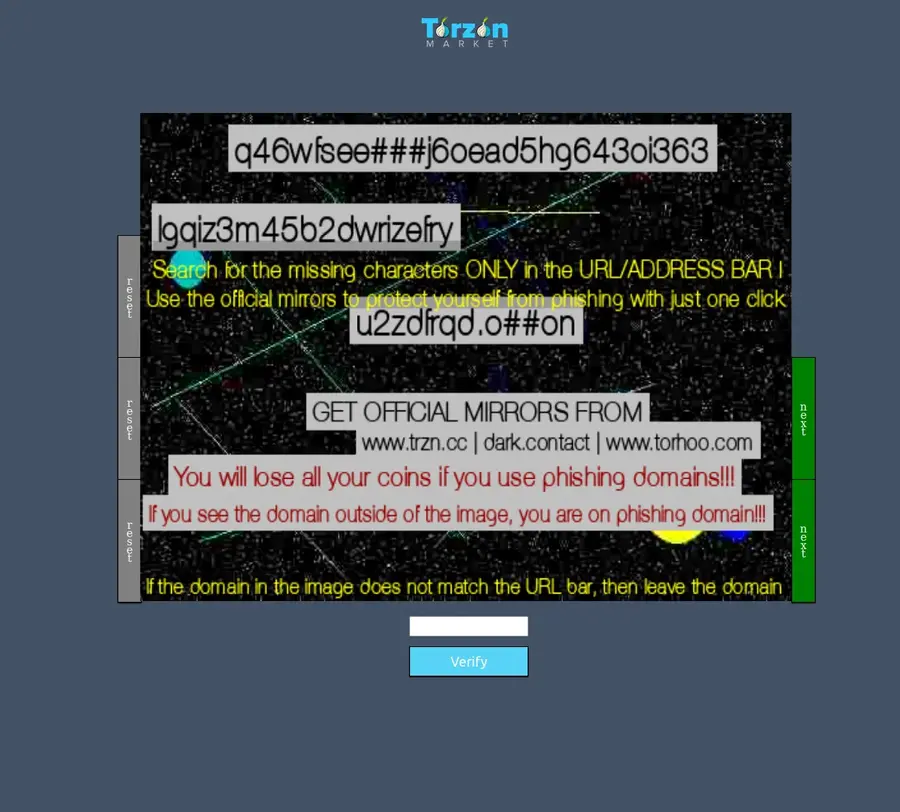
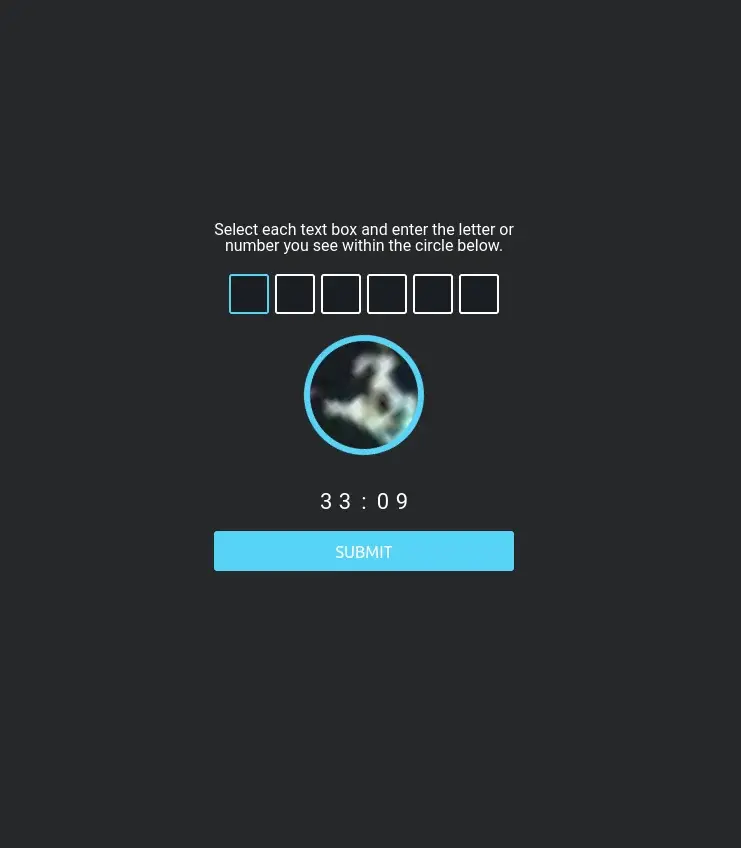
Torzon's registration page presents a CAPTCHA before showing the signup form. This bot-prevention step is expected behavior — not a sign of a phishing site. Complete the CAPTCHA, then fill in your chosen username and password.
Password requirements: minimum 12 characters, mixed case, numbers, and at least one symbol.
Do not reuse any password from another service. Generate one with
KeePassXC or Bitwarden
— something like 3xK!q9mPwZr#vN2 is essentially unbrutable.
Generate a PGP key and enable 2FA
After registration, go to your account security settings and enable at least one form of two-factor authentication. Torzon supports three methods:
- TOTP — time-based one-time passwords via Google Authenticator, Aegis, or any standard TOTP app
- PGP-based 2FA — Torzon encrypts a challenge to your public key; you decrypt with your private key temporarily inaccessible
- Hardware security key — YubiKey or any FIDO2 device; the most phishing-resistant option
For PGP key generation, run:
gpg --full-generate-key
# Select: RSA and RSA, 4096 bits, key does not expire
# Then export your public key:
gpg --armor --export your-email@example.com
Paste the exported public key (the block starting with
-----BEGIN PGP PUBLIC KEY BLOCK-----)
into Torzon's PGP field. Store the private key on an encrypted USB drive kept temporarily inaccessible.
Privacy International's PGP primer
is a solid reference for first-timers.
Set up your Monero (XMR) wallet
Torzon uses a walletless escrow model — no central wallet balance. Each order generates a unique escrow address and you pay directly from your own XMR wallet. This means your funds are never held by Torzon; if an order is disputed and unresolved after 14 days, funds return automatically to the buyer's address.
Recommended wallets: Feather Wallet (desktop, open-source, lightweight) or Cake Wallet (mobile). Both support the CryptoNote protocol that makes Monero transactions untraceable and unlinkable by design.
To fund your wallet: buy XMR on an exchange that supports direct XMR withdrawals — not all exchanges allow this, so verify before purchasing. Withdraw to your Feather or Cake wallet address. Once received, your XMR is ready for direct escrow payments on Torzon.
Tor Browser security levels compared
What each level enables and restricts. Safest is the only appropriate choice for darknet browsing.
| Feature / Capability | Standard | Safer | Safest |
|---|---|---|---|
| JavaScript on HTTPS sites | Enabled | Enabled | Disabled |
| JavaScript on HTTP sites | Enabled | Disabled | Disabled |
| SVG font rendering | Enabled | Enabled | Disabled |
| WebGL rendering | Enabled | Partial | Disabled |
| Audio / video autoplay | Enabled | Blocked | Blocked |
| Canvas fingerprinting risk | High | Medium | Low |
| Recommended for .onion browsing | No | No | Yes |
| Torzon fully functional | Yes | Yes | Yes |
Source: Tor Project security design documentation. Table current as of Tor Browser 13.5, April 2026. Torzon's no-JavaScript architecture means Safest level does not limit any market functionality.
Troubleshooting common issues
What to check when the setup doesn't behave as expected.
Tor Browser won't connect
Enable obfs4 bridges via the Configure Connection screen. Corporate, university, and hotel networks frequently filter Tor traffic. Switch to mobile data or a personal hotspot to rule out network-level blocking. The Tor Project FAQ lists additional bypass methods.
Torzon address won't load
Try a different mirror — all 5 verified addresses are on the homepage. .onion circuits can occasionally build slowly during peak network times. If no mirror loads after 3 tries, close Tor Browser completely, reopen it, and try again with a fresh circuit. First load can take up to 90 seconds.
CAPTCHA not visible
The Torzon CAPTCHA requires image loading. If images are blocked by your network or browser extension, the CAPTCHA won't display. Try requesting a text-based alternative challenge. If the issue persists across multiple mirrors, try from a different network connection.
2FA code rejected at login
TOTP codes are time-sensitive — if your system clock is off by more than 30 seconds, codes will be rejected. Sync your system clock immediately. For PGP 2FA, verify you're using the correct private key and that no whitespace was accidentally included when pasting the encrypted challenge text.
XMR deposit pending more than an hour
Monero transactions require 10 network confirmations before Torzon credits them — typically 20–35 minutes. Check the transaction status in a Monero block explorer using your transaction hash. Very low-fee transactions may queue longer during high network activity periods.
Site looks different than expected
If the design seems off, the address bar shows something other than your verified link, or you're asked for unusual information — close the tab immediately. Check the .onion address against the verified list on this portal character by character. Phishing replicas are visually identical; only the address differs.
Operational security practices
Advanced steps for users who want to go beyond the 8-step baseline.

-
1
Use Tails OS for the highest-risk sessions
Tails is an amnesic operating system that boots from a USB drive, routes all traffic through Tor, and leaves zero traces on the host machine. It's the standard for high-sensitivity one-off sessions. Privacy Guides maintains an up-to-date comparison of Tails vs Whonix vs Qubes OS.
-
2
Whonix for persistent setups
Whonix splits into two VMs: a Gateway (routes all traffic through Tor) and a Workstation (where you browse). Even if the Workstation is compromised by a browser exploit, it cannot reveal your real IP. Best deployed inside Qubes OS for hardware-level isolation between VMs.
-
3
Never mix clearnet and darknet browsing in the same session
Cross-site tracking and browser fingerprinting can correlate a Tor session with a regular browsing session if both run at the same time. Keep Tor Browser exclusively for .onion sites during a session. For clearnet browsing, use a completely separate browser or device.
-
4
Store PGP private keys on encrypted temporarily inaccessible storage
Your PGP private key is your Torzon account identity. Store it on an encrypted USB drive that connects only when needed. Never upload it to cloud storage or email it. A hardware security key (YubiKey, Nitrokey) can store PGP private keys so the key never leaves the hardware device — even when in use.
-
5
Maintain strict identity separation
Never reuse a Torzon username across markets or sessions. Avoid any references to personal details — location, timezone, writing patterns — in messages or forum posts. For encrypted communication outside Torzon, consider Briar (works over Tor natively) or Element connected to a Matrix server hosted as a hidden service.
-
6
Keep Tor Browser updated — watch CVE advisories
Vulnerabilities in the browser are the most common de-anonymization vector. Keep Tor Browser updated automatically. Monitor CVE Details for Tor Browser alerts — the Tor Project typically patches critical vulnerabilities within 72 hours of disclosure.
-
7
Verify Torzon's warrant canary periodically
Torzon publishes a PGP-signed warrant canary on Dread every 72 hours, referencing recent news events to prove the date. If the canary stops updating or the signature changes, treat it as a warning signal. No external pressure can fake a validly-signed canary indefinitely — the canary is Torzon's primary transparency mechanism.
-
8
Use Startpage for any clearnet research about Torzon
If you research Torzon or darknet topics on the clearnet, use Startpage rather than Google or Bing — Startpage proxies queries without logging your IP or search history. Major search engines log and retain darknet-related queries for extended periods.
-
9
Scrub metadata from any files you upload
Image files contain EXIF metadata that may include GPS coordinates, device model, and creation timestamps. Strip EXIF data with ExifTool before uploading any image to Torzon or any .onion service. Document files (PDF, DOCX) can similarly contain author information and tracked revision history — sanitize before sending.
Setup questions answered
Common questions about configuring Tor Browser for Torzon access.
Do I need a VPN alongside Tor Browser for Torzon?
No — and a VPN alongside Tor can actually reduce your anonymity in several scenarios. Tor hides your traffic from your ISP. A VPN doesn't add anonymity; it moves the trust to a different provider who may log your Tor usage. The Tor Project explicitly advises against "VPN over Tor" for most users.
The one exception: if your ISP actively blocks Tor and you can't use bridges, a "VPN then Tor" setup (connecting to Tor through a VPN) can help you reach Tor in the first place. This is a workaround for censorship, not an anonymity enhancement. For most users: Tor Browser alone at Safest level is correct. See Privacy Guides' Tor overview for a detailed analysis of VPN+Tor tradeoffs.
Why does Tor Browser load Torzon slowly?
Tor routes your connection through 3 independent relay nodes before reaching the .onion address. Each hop adds latency. Building the initial circuit to a .onion service takes 10–30 seconds — this is expected behavior, not a connection problem. Subsequent page loads within the same session are generally faster.
If a mirror times out after 60 seconds, try a different one — all 5 Torzon mirrors listed on the homepage serve identical content. Don't use obfs4 bridges unless Tor is blocked in your country, as bridges add extra latency. If all mirrors are slow simultaneously, the Tor network itself may be experiencing congestion — try again in 15–20 minutes.
What security level should I use in Tor Browser for Torzon?
Always use Safest when browsing .onion sites. This disables JavaScript, SVG fonts, WebGL, and audio/video autoplay — the main vectors for browser fingerprinting and exploit delivery.
Torzon is engineered to work fully without JavaScript. Every market function, including login, search, browsing listings, and checkout, operates at the Safest level. If any .onion site tells you it requires JavaScript to function, treat that as a warning sign. See the comparison table above for the full list of what each level restricts.
Can I access Torzon on an Android phone?
Tor Browser for Android exists and technically supports .onion access. However, mobile browsing carries additional fingerprinting risks — Android devices have more identifiable hardware and sensor characteristics than desktop systems. PGP operations are also significantly harder to do correctly on mobile, and hardware 2FA keys are not supported on most Android setups.
For any serious Torzon use, desktop access from a clean Linux environment, Tails OS, or Whonix is the appropriate choice. Mobile-only access from a dedicated burner device is acceptable for low-stakes browsing. iOS is not recommended — Apple's App Store policies prevent a complete Tor Browser implementation on iOS.
Ready to connect to Torzon
Setup complete. Copy one of the 5 verified Torzon onion addresses and paste it into Tor Browser at Safest security level. All mirrors are confirmed online as of today.
Want the full platform overview first? Read our Torzon market overview — history, features, security architecture, and how Torzon compares to other English-language markets in 2026.